The Samsung Galaxy Watch series dominates the Android smartwatch ecosystem, offering exceptional industrial design, vivid Super AMOLED displays, and durable materials such as sapphire crystal and aerospace titanium. Yet, the vast majority of Galaxy Watch owners never harness its true potential in the weight room. Many lifters rely either on Samsung Health’s rudimentary workout presets – which track little more than continuous heart rate and arbitrary calorie estimates – or leave the watch idle while juggling an unlocked smartphone between sets of heavy squats and bench presses. By properly configuring your Samsung smartwatch with a dedicated Wear OS workout tracker, you transform your Galaxy Watch into an autonomous strength training command center that logs every repetition, governs rest intervals with tactile haptics, and eliminates digital distractions entirely.
In this comprehensive operational guide, we dissect how to optimize every modern Samsung Galaxy Watch model (from Watch 4 and Watch 5 Pro to Watch 6 Classic, Watch 7, and Watch Ultra) for serious resistance training. We cover bezel calibration, display settings, standalone phone-free execution, and how to harness your watch’s hardware to drive systematic progressive overload via your workout tracker.
1. The Hardware Advantage: Why Galaxy Watch Excels in the Weight Room
Compared to delicate consumer smartwatches, Samsung’s hardware engineering is uniquely suited to the harsh environment of a commercial gym. Weight rooms are filled with knurled steel barbells, cast iron plates, and heavy dumbbells that quickly scratch ordinary smartwatch glass.
Samsung addresses this through superior materials:
- Sapphire Crystal Displays: Starting with the Galaxy Watch 5 series and continuing across Watch 6, 7, and Ultra, Samsung equips its displays with synthetic sapphire crystal (Mohs hardness scale 9). This provides near-total scratch immunity against accidental contact with dumbbell knurling and weight trees.
- Physical and Digital Rotating Bezels: On the Galaxy Watch 4 Classic and Watch 6 Classic, the physical rotating bezel provides mechanical detent feedback, allowing lifters to scroll through exercise lists or adjust working weights in 2.5 kg increments without needing precise touch inputs on sweaty glass. On standard models, the capacitive digital edge bezel provides equivalent tactile haptic scrolling.
- Titanium and Armor Aluminum Casings: The ruggedized chassis absorbs impacts that would shatter standard consumer electronics, making it resilient during dynamic kettlebell snatches or heavy barbell cleans.
- Dual-Frequency BioActive Sensor: Samsung’s custom 3-in-1 sensor package integrates optical heart rate, electrical heart sensor (ECG), and bioelectrical impedance analysis (BIA), tracking cardiovascular recovery between sets with high precision.
2. Essential One-Time Settings to Configure Before Training
Out of the box, Wear OS on Samsung Galaxy Watch is configured for battery conservation and passive notifications. To prevent your workout session from being interrupted by screen timeouts or task throttling, configure these critical settings in your Galaxy Wearable app and watch menu:
1. Enable Always-On Display (AOD)
During heavy lifting, you cannot always perform an exaggerated wrist-raise motion to illuminate the screen (for instance, while holding heavy dumbbells during an incline press or while strapped into a lat pulldown). Open Watch Settings → Display → Toggle “Always On” to Active. This ensures your active set counter and countdown timer remain continuously visible.
2. Disable Aggressive Battery Optimization
Samsung’s One UI Watch software aggressively freezes background applications to extend battery life. If your workout app is suspended during a two-minute rest interval, your haptic timer alert may be delayed. Open Watch Settings → Apps → Special App Access → Battery Optimization → Select your workout tracker and choose “Don’t Optimize”.
3. Calibrate Haptic Intensity
Commercial gyms are loud, chaotic environments filled with ambient music and clattering iron. Open Watch Settings → Sounds and Vibration → Vibration → Set Vibration Intensity to “Strong” and Vibration Duration to “Long”. This guarantees you never miss a rest interval alert even when wearing heavy wrist wraps.
3. Overcoming Moisture and Sweat: Touch vs. Bezel Navigation
A primary frustration when using touchscreens during intense summer lifting sessions is sweat interference. Saline moisture alters capacitive screen voltage, resulting in missed taps or frustrating screen freezing. Samsung Galaxy Watch overcomes this limitation through redundant mechanical controls.
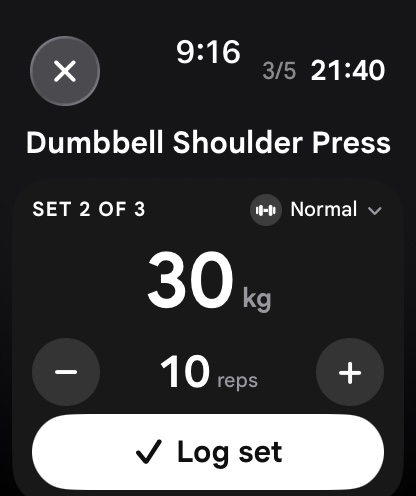
In high-performance strength apps like IMPOLS, primary navigation is mapped directly to the rotating bezel. Rotating the bezel clockwise increments your weight by 2.5 kg; rotating counter-clockwise decrements the load. Furthermore, secondary hardware keys can be configured to confirm set completion. This allows you to log sets, adjust weights, and start rest timers without ever touching the capacitive display glass.
4. Galaxy Watch Strength Tracking Comparison Matrix
The following table contrasts dedicated Wear OS strength software against stock Samsung Health functionality:
| Feature / Dimension | IMPOLS for Galaxy Watch | Stock Samsung Health Workout | Generic Android Gym Loggers |
|---|---|---|---|
| Set & Weight Logging | Full standalone set, rep, RIR, and load tracking | Basic start/stop timer; no resistance set logging | Requires phone nearby; watch acts as basic mirror |
| Rotating Bezel Integration | Native detent control for weight plates and reps | None or limited volume scrolling | Rare; touch-only interface |
| Automated Rest Timers | High-priority haptic countdowns with auto-advance | Generic manual stopwatch | Basic audio beep easily drowned out |
| Sensor Velocity Telemetry | 6-axis IMU tracking for rep speed and effort | Aerobic calorie estimation only | None; manual taps only |
| Health Connect & Cross-Platform Sync | Full sync with Google Health Connect, iOS, and Apple Watch | Samsung Health cloud only; closed garden | Isolated database; no health platform sync |
| Nutrition & Muscle Map Context | Direct connection to macro tracker and muscle recovery map | Rudimentary food log; no muscle fatigue map | Isolated workout logger without metabolic tools |
5. Step-by-Step Protocol: Executing a Phone-Free Gym Workout
To experience the focus of phone-free training with your Galaxy Watch, execute this 4-phase operational workflow:
Phase 1: Routine Programming and Watch Pre-Loading
Open your workout tracker on your Samsung Galaxy smartphone before your workout. Build your scheduled routine (e.g., Push Hypertrophy: Flat Barbell Bench Press, Incline Dumbbell Press, Cable Lateral Raise, Triceps Pressdown). Assign target rep brackets and automated rest intervals (e.g., 180 seconds on compound lifts, 90 seconds on isolation work). Sync the routine to your Galaxy Watch via local Wi-Fi or Bluetooth.
Phase 2: Entering Standalone Mode
Leave your smartphone locked in your gym bag or locker. On your Galaxy Watch, swipe to your IMPOLS Quick Tile or tap the watch face complication. Tap “Start Workout” on your pre-loaded routine. Your watch immediately assumes control of the session, operating 100% offline from local storage.
Phase 3: Set Execution and Tactile Bezel Logging
Step up to the barbell and complete your working set. Upon re-racking, glance at your wrist. The watch displays your logged reps: if you achieved an extra repetition, tap +1 Rep or flick the rotating bezel. Click the checkmark. Your set data is saved, your progressive overload tonnage updates, and the prominent haptic rest timer immediately begins counting down.
Phase 4: Syncing via Google Health Connect
Upon finishing your final exercise, tap “Complete Workout”. Your Galaxy Watch compiles total volume load, sets completed, and active cardiovascular metrics. When your watch reconnects to your phone, the data broadcasts to Google Health Connect, instantly updating your daily calorie budget in your food tracker and refreshing your muscle recovery body map.
5b. Samsung Health Connect vs. Cloud Sync: Data Integrity in the Weight Room
A major technical hurdle for Android smartwatch users has historically been fragmented health data silos. Samsung Health, Google Fit, and third-party strength trackers often stored workout logs in proprietary cloud databases that could not communicate with each other. The introduction of Google Health Connect directly into Wear OS 4 and Wear OS 5 has resolved this issue.
When you complete a lifting session with IMPOLS on your Galaxy Watch, your volume load, active heart rate curve, and session duration are written directly to the on-device Health Connect data store. This allows your workout telemetry to instantly synchronize with your nutritional logs in your food tracker and inform your daily recovery metrics without requiring cumbersome manual CSV exports or third-party sync bridges.
5c. Bioelectrical Impedance Analysis (BIA) and Skeletal Muscle Tracking
Starting with the Galaxy Watch 4, Samsung embedded two electrodes into the physical side keys, enabling on-wrist Bioelectrical Impedance Analysis (BIA). By passing a safe, low-voltage microcurrent through your upper body, the sensor measures biological resistance (impedance) and reactance to estimate body fat percentage and skeletal muscle mass.
While wrist-based BIA cannot replace clinical DEXA scanning, it provides exceptional longitudinal trend tracking when measured under consistent biological conditions (such as every Friday morning upon waking and after urination). Tracking your 4-week moving average of skeletal muscle mass alongside your progressive overload volume on your workout tracker provides empirical validation that your training block is driving true muscular hypertrophy rather than simple fluid retention.
Additionally, taking advantage of Samsung Galaxy Watch quick-launch settings allows you to assign a double-press of the top physical button to immediately open your active workout session, ensuring instantaneous access between sets.
5d. Optimizing AMOLED Battery Consumption During 2-Hour Hypertrophy Sessions
Samsung Galaxy Watches feature bright, high-resolution Super AMOLED displays. In AMOLED technology, black pixels emit zero light and consume zero battery power, whereas white pixels illuminate all three sub-pixels at maximum power draw.
To ensure your Galaxy Watch easily powers through a two-hour high-volume leg session with ample battery remaining for nocturnal sleep tracking, workout applications should feature pure pitch-black backgrounds (#000000) rather than dark grey or navy gradients. By rendering timers, weight numbers, and set counts in clean monochrome and high-contrast vibrant accents against true black, display power consumption is reduced by over 60%. Combined with turning off Wi-Fi and LTE when training indoors, your battery consumption drops to under 6% to 8% per hour, ensuring your watch remains powered all day long.
6. Common Galaxy Watch Gym Logging Mistakes
Mistake 1: Wearing the Watch Too Close to the Hand
During heavy pressing or front squats, extreme wrist extension can push the back of your hand against the watch casing, accidentally depressing the Home or Back key. Wear your Galaxy Watch two fingers above your ulnar wrist bone to allow unrestricted joint mobility.
Mistake 2: Leaving Touch Sensitivity Disabled
If you wear thin lifting gloves in the gym, open Watch Settings → Display → Turn On “Touch Sensitivity”. This increases screen responsiveness, allowing the display to register touch inputs even through synthetic leather workout gloves.
Mistake 3: Forgetting to Sync Tiles Before Arriving
In concrete commercial gym basements where cellular and Wi-Fi signals fail, ensure your workout app has been opened once while connected to data so that any updated routines from your phone are cached locally on your watch.
7. Frequently Asked Questions
How long does a Galaxy Watch battery last during a heavy gym workout?
A standard 75 to 90-minute lifting workout using continuous sensor telemetry and an always-on display consumes approximately 12% to 16% battery on a Galaxy Watch 6/7, and under 10% on a Galaxy Watch 5 Pro or Galaxy Watch Ultra, leaving abundant power for full-day use and sleep tracking.
Can I log workouts on my Galaxy Watch if I switch to an iPhone later?
Yes. While modern Galaxy Watches run Wear OS (which pairs with Android smartphones), the IMPOLS platform is fully cross-platform. Your entire training history, personal records, and routines sync seamlessly across Android, iOS, Wear OS, and Apple Watch.
Does the Galaxy Watch track barbell velocity?
Yes. Advanced algorithms utilize the watch’s 6-axis IMU (accelerometer and gyroscope) to track movement speed and velocity loss across sets, providing objective intuitive training metrics.
How does Galaxy Watch tracking connect with my daily nutrition?
Your logged volume load and cardiovascular burn synchronize with your food tracker, dynamically adjusting your daily carbohydrate and calorie targets to fuel muscular recovery.
8. Summary and Galaxy Watch Setup Checklist
The Samsung Galaxy Watch is a world-class strength training tool when paired with dedicated lifting software. By leveraging its sapphire crystal durability, rotating bezel ergonomics, and autonomous offline logging, you take total command of your gym progression.
- Equip a modern Samsung Galaxy Watch (Watch 5 Pro, Watch 6 Classic, Watch 7, or Watch Ultra).
- Enable Always-On Display and set Vibration Intensity to “Strong” with “Long” duration.
- Turn on “Touch Sensitivity” if you train wearing lifting gloves.
- Pre-load your routines and rep brackets into your workout tracker so you can leave your phone behind.
- Use the rotating bezel to adjust weights and reps with tactile precision.
- Close the loop by syncing your strength logs with your daily macro targets and monitoring biological recovery via a sleep tracker.