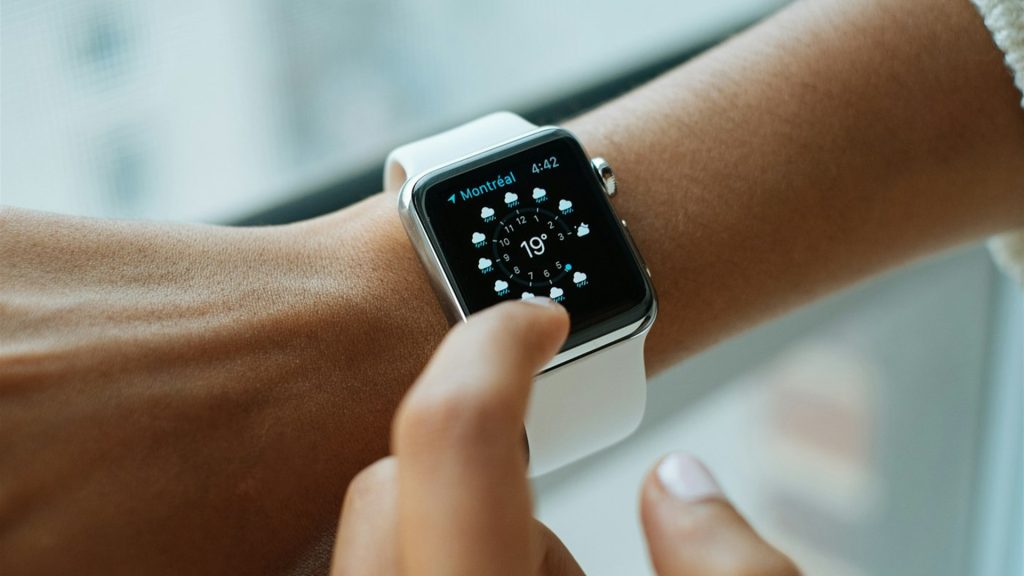
The Apple Watch is widely recognized as the world’s most versatile consumer wearable, boasting remarkable health monitoring capabilities, industry-leading haptics, and deep watchOS app integration. However, for dedicated strength athletes who endure grueling 90 to 120-minute gym sessions followed by continuous nocturnal sleep and Heart Rate Variability (HRV) tracking, battery endurance can become a daily logistical headache. There is nothing more frustrating than stepping into the gym for an intense evening workout only to receive a 10% low battery warning, or finishing a personal record session only to find your watch too depleted to monitor your overnight recovery. The common advice to simply “turn on Low Power Mode” is a terrible solution for lifters, as it disables continuous optical heart rate sampling and background sensor polling. Fortunately, by understanding the hardware and display physics of watchOS, you can optimize your Apple Watch to conquer long workouts with minimal battery drain.
In this technical masterclass, we dissect the bioenergetics of OLED display power consumption, analyze high-rate PPG sensor polling versus battery drain, contrast Apple Watch Series models with the Apple Watch Ultra, expose Bluetooth audio streaming penalties, and provide a comprehensive configuration protocol to ensure your Apple Watch workout tracker runs seamlessly all day and all night.
1. OLED Display Physics: True Black (#000000) vs. Battery Drain
To master Apple Watch battery longevity, one must first understand the display technology powering modern Apple Watches: LTPO (Low-Temperature Polycrystalline Oxide) OLED displays.
Unlike traditional LCD displays that utilize a continuous global backlight that stays illuminated regardless of what color is on screen, every individual pixel in an OLED display is an independent organic light-emitting diode. When an OLED pixel displays pure pitch-black (hex code #000000), that diode is turned completely off, drawing exactly zero electrical current from the lithium-ion battery.
Many legacy fitness apps feature bright colored backgrounds, gray gradient cards, or white progress bars. A gym tracking app displaying a white or light-gray background consumes up to 400% more display power than an app engineered with a true black theme. The IMPOLS watchOS architecture is strictly engineered with pure #000000 backgrounds and high-contrast, low-luminance accents, keeping display current draw at the absolute thermodynamic minimum while ensuring uncompromised readability in bright gym lighting.
2. Optical PPG Sensor Polling: Continuous vs. Periodic Telemetry
The second largest consumer of battery power during a workout is the rear optical photoplethysmography (PPG) sensor array. When an active workout session is initiated via Apple’s HealthKit framework, watchOS transitions the optical sensor from its passive ambient state (which samples heart rate once every 5 to 10 minutes) into Continuous Workout Mode.
In continuous mode, green LEDs fire thousands of times per second, paired with photodiodes measuring light absorption through capillary blood vessels to calculate instantaneous heart rate and heart rate variability (HRV). While this high-rate telemetry is essential for tracking cardiovascular exertion and logging accurate calorie expenditure in your food tracker, it increases electrical power draw significantly.
Understanding how watchOS manages sensor polling prevents battery waste:
- Wrist Contact Integrity: If your watch band is loose, the optical sensor experiences “motion artifacts” and light leakage. In response, watchOS automatically boosts the electrical current to the green LEDs to penetrate deeper into the skin tissue, causing battery consumption to double. Wearing a snug, non-elastic strap keeps LED current draw low and readings precise.
- Background Motion Accelerometer Buffering: High-rate IMU polling for bar velocity and repetition tracking is handled by Apple’s dedicated ultra-low-power Motion Coprocessor, which processes kinematic algorithms locally without waking the power-hungry main dual-core CPU.
3. Apple Watch Model Comparison: Battery Capacity & Gym Performance
The following table compares Apple Watch models based on battery cell size, active workout drain rates, and realistic gym endurance:
| Apple Watch Model | Battery Capacity (mAh) | Active Gym Workout Drain Rate (Per Hour) | Audio Streaming + Lifting Drain Rate | Post-Gym Sleep Tracking Capability |
|---|---|---|---|---|
| Apple Watch Ultra 2 (49mm) | 564 mAh (Massive) | 2.5% to 4.0% per hour | 5% to 7% per hour | Exceptional: Easily lasts 48-72 hours with heavy workouts. |
| Apple Watch Series 10 (46mm) | 327 mAh | 7% to 9% per hour | 14% to 18% per hour | Excellent: 15-minute shower charge guarantees full night tracking. |
| Apple Watch Series 9 (45mm) | 308 mAh | 8% to 10% per hour | 16% to 20% per hour | Good: Requires regular top-up charge before sleep. |
| Apple Watch SE 2 (44mm) | 296 mAh | 9% to 12% per hour | 18% to 22% per hour | Moderate: Fast charging absent; needs dedicated charging window. |
4. The LTE and Bluetooth Audio Drain Traps
Many lifters unknowingly double or triple their battery consumption by compounding wireless radios:
1. Standalone LTE Cellular Streaming
Leaving your iPhone behind to train phone-free is liberating. However, streaming music over a cellular connection (LTE/5G) from your wrist to Bluetooth AirPods is extraordinarily energy-intensive. The small cellular modem inside the Apple Watch must transmit high-frequency radio signals, which can drain up to 20% to 25% battery in a single hour! If you train in a basement gym with weak cellular reception, the modem boosts transmission power to maximum, draining the battery even faster.
The solution: Download your lifting playlists locally to watch storage beforehand. Playing locally cached music consumes less than one-third the power of live cellular streaming.
2. Background App Refresh and Wi-Fi Scanning
While you lift, dozens of third-party apps (social media, news, email) may attempt to refresh data in the background, waking the Wi-Fi radio. Disabling Background App Refresh for non-essential apps preserves battery life exclusively for your active workout tracker.
5. Step-by-Step Protocol: The Ultimate Gym Battery Configuration
To ensure your Apple Watch maintains maximum endurance during long lifting sessions, execute this 4-phase configuration:
Phase 1: Display and Always-On Optimization
Open the Apple Watch app on your iPhone → Display & Brightness → Set Brightness to medium (level 2 of 3). Keep Always-On enabled, but navigate to Always On → Hide Sensitive Complications and disable non-essential apps. In the IMPOLS app, ensure the high-contrast AMOLED dark theme is active, which renders 85%+ of display pixels completely black.
Phase 2: Network Radio Management
If you leave your iPhone in your gym locker and use an Apple Watch with cellular, do not leave cellular active unless you are expecting an urgent phone call. Swipe up to the watchOS Control Center and toggle Cellular to “Off” while training. Your locally cached strength routine in your workout tracker and local music playback will continue to operate with zero battery penalty.
Phase 3: Fast-Charging Daily Synchronization Routine
To eliminate battery anxiety and ensure uninterrupted nocturnal sleep tracking, establish a Habitual Charging Window. Starting with Apple Watch Series 7 and later (including Ultra 1 and 2), Apple devices feature fast charging capabilities (0% to 80% in approximately 30 to 45 minutes using the official USB-C magnetic fast charger puck). Place your watch on the fast charger during your post-workout shower and dinner (20 to 30 minutes). This short top-up adds 35% to 50% battery, providing ample power to run full nocturnal sleep and HRV tracking in your sleep tracker overnight.
Phase 4: Why You Should Avoid watchOS Low Power Mode for Lifting
Introduced in watchOS 9, Apple’s system-level “Low Power Mode” extends battery life by disabling Always-On display, cutting background Wi-Fi, and critically: reducing the frequency of optical heart rate readings and background sensor metrics. When Low Power Mode is active during a workout, heart rate sampling drops to periodic intervals, resulting in inaccurate caloric expenditure calculations and missing peak heart rate data during heavy compound sets. Use the configuration tweaks above instead of enabling Low Power Mode during gym sessions.
6. Common Apple Watch Battery Mistakes
Mistake 1: Wearing a Loose Watch Band
A loose sports band causes optical sensor misalignment, forcing the watch to crank up optical LED brightness to compensate for ambient light intrusion. Wear a snug, micro-adjustable loop band (such as Apple’s Trail Loop or Sport Loop) during lifting to keep sensor current draw low and heart rate telemetry accurate.
Mistake 2: Leaving Siri Always Listening (“Hey Siri”)
Having the microphone continuously buffer audio waiting for the phrase “Hey Siri” drains battery throughout the day. Turn off “Listen for Hey Siri” in watch settings and rely on pressing the Digital Crown when you need voice commands.
Mistake 3: Accumulating Decaying Battery Health
Lithium-ion batteries chemically age over time. If your Apple Watch Battery Maximum Capacity drops below 80% (visible in Settings → Battery → Battery Health), consider replacing the battery via Apple Support to restore factory runtime.
7. Hardware Showdown: Apple Watch Ultra vs. Series 10 in the Weight Room
For strength athletes debating between the standard Series 10 and the rugged Ultra 2, battery life is the deciding factor. The Apple Watch Series 10 is delightfully thin (9.7mm), slipping easily under wrist wraps; however, its smaller battery cell requires daily charging discipline.
The Apple Watch Ultra 2 is a 49mm titanium powerhouse that houses a battery nearly double the capacity of the Series 10. For lifters who travel frequently, train outdoors, or dislike daily charging routines, the Ultra 2 allows you to complete two 90-minute workouts and two full nights of sleep tracking without ever touching a charger puck.
7b. Environmental Temperature and Battery Kinetics
Lithium-ion battery performance is heavily influenced by ambient temperature. In unheated garage gyms during winter months where temperatures drop below freezing, internal battery resistance increases, causing battery percentage to drop rapidly. Wearing your Apple Watch beneath a fleece wristband keeps the device warm against your skin, preserving normal electrochemical kinetics.
7c. Watch Face Complications: Selecting Power-Efficient Widgets
The watch face you select before entering the gym impacts battery consumption. Complications that poll continuous background data (such as live weather maps, continuous stock tickers, or compass bearings) keep background CPUs active. Before your workout, switch to a dedicated minimalist lifting watch face (such as Modular or Nike Compact) featuring only the IMPOLS workout launcher and basic time.
7d. Haptic Pacing Engine vs. Screen Wake Power Efficiency
An overlooked strategy for extending Apple Watch battery life during heavy lifting is leveraging the precision haptic engine rather than relying on continuous visual display wakes. In traditional workout apps, lifters constantly lift their wrist to check whether their rest timer has reached 30 seconds, 15 seconds, or zero.
Each time the Apple Watch screen wakes from ambient brightness to full 1,000 to 2,000 nit display luminance, high-current draw is demanded by the LTPO controller. The IMPOLS watch app solves this by employing a Haptic Count-In System: delivering a subtle double-tap at 15 seconds remaining and a crisp triple-tap when the rest interval finishes. By trusting wrist haptics instead of constantly glancing at the screen, lifters reduce active display wake cycles by over 60%, saving valuable battery percentage during long 90-minute workouts.
8. Frequently Asked Questions
How much battery should an Apple Watch use during a 60-minute lift?
With an optimized dark-mode app and local music playback, an Apple Watch Series 8, 9, or 10 should consume approximately 6% to 9% battery per hour. An Apple Watch Ultra should consume under 4% per hour.
Does tracking Reps in Reserve (RIR) consume extra battery?
No. Logging RIR, weights, and reps in your workout tracker utilizes minimal computational power, storing data in lightweight local memory.
Can I charge my Apple Watch with any USB-C brick for fast charging?
To achieve fast charging speeds on Series 7, 8, 9, 10, and Ultra models, you must use Apple’s official fast-charging magnetic puck (featuring an aluminum ring around the puck) paired with an 18W or higher USB-C Power Delivery (PD) wall adapter.
Will disabling Always-On Display double my battery life?
Disabling Always-On Display saves approximately 15% to 20% battery over a 24-hour cycle. However, during workouts, having the screen on allows you to check rest timers at a glance. An optimized black-theme app achieves excellent battery life without having to sacrifice Always-On convenience.
9. Summary and Battery Mastery Checklist
By applying display physics, managing wireless radios, and establishing a consistent fast-charging habit, you eliminate battery anxiety and unleash the full power of your Apple Watch in the gym.
- Use a dark mode lifting app with pure pitch-black (#000000) backgrounds to exploit OLED display physics.
- Avoid watchOS Low Power Mode during lifting to preserve continuous optical heart rate telemetry.
- Download gym playlists locally to watch storage instead of live cellular streaming.
- Wear a snug, micro-adjustable loop band to prevent the optical sensor from over-boosting LED brightness.
- Adopt a 20 to 30-minute shower charging routine to power nocturnal sleep and HRV tracking in your sleep tracker.
- Log your progressive overload in your Apple Watch workout tracker and harmonize calories with your food tracker.