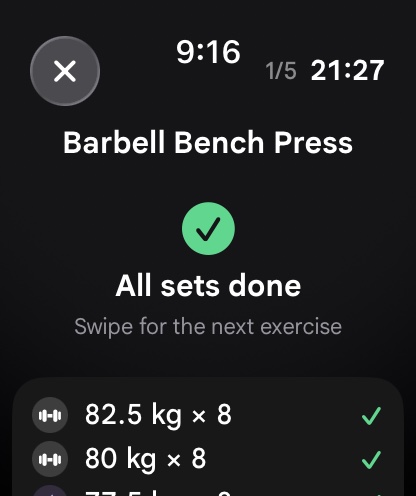
The Apple Watch is the most ubiquitous consumer wearable on the planet, yet the overwhelming majority of gym-goers utilize only a fraction of its athletic capabilities. In most weight rooms, lifters use their Apple Watch simply to start a generic “Traditional Strength Training” session in the stock Workout app – an activity that does little more than estimate heart rate and display an arbitrary calorie counter. What lifters truly need is a dedicated, autonomous digital companion on their wrist that tracks sets, logs exact loads, times rest intervals with sharp haptic pulses, and records progressive overload without requiring a glance at their iPhone. With watchOS 10 and watchOS 11 hardware, an engineered Apple Watch workout tracker delivers this exact capability.
In this comprehensive setup and operational guide, we dissect how to transform your Apple Watch (from Series 7/8/9/10 to Apple Watch Ultra 1 and 2) into the ultimate strength training instrument. We analyze hardware configuration, Digital Crown calibration, the Action Button integration on Ultra, haptic feedback governance, and how advanced inertial sensors unlock intuitive training paradigms directly from your wrist.
1. The Native Workout App Dilemma: Why Stock Tracking Fails in the Gym
To configure your Apple Watch for serious lifting, you must first recognize the structural limitations of Apple’s native Fitness suite. The default Workout app was engineered around cardiovascular endurance paradigms: outdoor running, road cycling, lap swimming, and brisk walking. In these activities, continuous optical heart rate telemetry and GPS coordinates provide meaningful indicators of aerobic load.
In contrast, resistance training is characterized by intermittent bursts of high-intensity muscular work followed by static recovery intervals. During a heavy set of deadlifts or overhead presses, isometric contraction of the wrist flexors and extensors elevates intramuscular pressure, temporarily blunting capillary perfusion beneath Apple’s optical photoplethysmography (PPG) sensor crystals. This induces latency and motion artifacts that render real-time heart rate reporting delayed and inaccurate.
More importantly, Apple’s native workout mode has zero concept of resistance training variables: it cannot track exercises, set numbers, weight plates, completed repetitions, or target Reps in Reserve (RIR). Relying on the stock app reduces a sophisticated strength session to a generic cardiovascular blur. Trainees require a specialized workout tracker that leverages watchOS background execution frameworks to deliver true set-by-set logging.
2. Hardware Architecture: Apple Watch Series vs. Apple Watch Ultra
Apple’s hardware ecosystem offers two primary tiers for strength athletes, each presenting unique ergonomics and physical capabilities:
Apple Watch Series (Series 7, 8, 9, 10)
The standard Series models feature lightweight aluminum or stainless steel cases with edge-to-edge OLED displays. Their slim profile is exceptionally comfortable when executing exercises that require deep wrist extension, such as front squats, clean and presses, or push-ups. Because the chassis is relatively thin, the watch is less likely to pinch against the back of the hand during wrist extension.
However, the Ion-X glass on aluminum models is prone to scratching if accidentally brushed against knurled steel barbells or dumbbell racks. Lifters using aluminum Series models should opt for a slim matte bumper guard or upgrade to stainless steel/titanium models featuring scratch-resistant sapphire crystal.
Apple Watch Ultra (Ultra 1 and Ultra 2)
The Apple Watch Ultra is the undisputed king of strength training wearables. Its aerospace-grade 49mm titanium enclosure and completely flat sapphire front crystal are nearly impervious to gym wear and tear, whether bumping into weight plate trees or dragging against knurled iron. The massive 3,000-nit display provides instantaneous legibility under intense commercial gym lighting.
Most importantly, the Ultra features the programmable orange Action Button on the left side of the chassis. In dedicated strength applications like IMPOLS, this physical button can be mapped directly to “Complete Set” or “Advance Rest Timer”. This allows lifters to log working sets instantaneously without ever touching the display screen, completely eliminating touch errors caused by sweaty fingers or chalk.
3. Step-by-Step Configuration: Optimizing watchOS for Strength Training
To eliminate interruptions, battery throttling, and display sleep issues during your workout, configure these essential watchOS settings prior to your training session:
Step 1: Configure the Display and Always-On Settings
Open the Watch app on your iPhone → Display & Brightness → Always On → Toggle “Always On” to Active. Next, tap “Show App Data” and ensure your workout tracking app is toggled on. This guarantees that your active set numbers, previous weights, and live rest countdown timers remain continuously visible without requiring an exaggerated wrist flick while holding heavy dumbbells.
Step 2: Optimize Wake Duration
Under Display & Brightness → Wake Duration → Select “Wake for 70 Seconds”. When you tap your watch display during a rest interval, this ensures the screen remains illuminated for over a minute, giving you ample time to review exercise notes, historical personal records, and upcoming target reps.
Step 3: Calibrate Haptic Alerts
Go to Watch Settings → Sounds & Haptics → Select “Prominent Haptic”. The Taptic Engine inside Apple Watch produces the most sophisticated linear resonance feedback in the tech industry. Setting haptics to “Prominent” ensures that when your rest timer concludes, a distinctive pre-alert vibration buzzes your wrist, cutting through loud gym audio and headphones.
Step 4: Configure the Action Button (Ultra Users)
On Apple Watch Ultra, open Watch Settings → Action Button → Select your workout tracker as the primary app target. Map the primary press action to “Finish Set / Advance”. Now, whenever you finish a set of bench presses or pull-ups, simply click the orange Action Button with your thumb: the set logs immediately, and your rest timer engages.
4. Sensor Integration: Tri-Axial Accelerometers and Barbell Velocity
Behind the display glass, the Apple Watch houses a high-g tri-axial accelerometer and a high-dynamic-range gyroscope capable of sampling movement at up to 100 Hz. In advanced strength tracking software like IMPOLS, this telemetry is utilized to unlock intuitive training paradigms.
When you perform a repetition, the sensor measures linear acceleration along the z-axis (perpendicular to the watch face) and rotational angular velocity. As muscular fatigue accumulates across a working set, the concentric bar speed inevitably decelerates. By measuring the velocity degradation between repetition 1 and repetition 8, the algorithm objectively calculates how close you are to concentric muscular failure (Reps in Reserve, or RIR). This objective telemetry protects athletes from overtraining on low-readiness days and encourages overload when the nervous system is primed for performance.
5. Apple Watch Strength Tracking Feature Comparison
The following table contrasts dedicated watchOS lifting software against generic fitness tracking solutions:
| Feature / Dimension | IMPOLS for Apple Watch | Apple Native Workout App | Generic iOS Fitness Loggers |
|---|---|---|---|
| Autonomous Phone-Free Logging | Full independent operation; routines stored locally on watch | Tracks duration and heart rate only; no set or rep logging | Requires active iPhone nearby; watch acts as simple display mirror |
| Action Button Support (Ultra) | Direct physical key mapping for set completion and timer advance | Basic workout pause/resume only | No Action Button integration |
| Digital Crown Weight Adjustments | Crisp, haptic detent rotation to adjust weight in 0.5 kg / 2.5 lb steps | None | Clunky on-screen sliders prone to sweat mis-taps |
| Haptic Rest Interval Timers | Prominent multi-stage haptic countdowns with auto-advance | None; lifter must use separate stopwatch app | Basic notification sound easily missed in gym |
| Apple Health & Cloud Sync | Complete two-way sync with Apple HealthKit and Android / Wear OS | Apple Health only; closed proprietary ecosystem | Inconsistent background syncing |
| Integrated Biological Context | Unified with macro tracker and muscle recovery body map | Caloric estimate only; zero nutrition tools | Isolated strength log without metabolic context |
6. Step-by-Step Protocol: Executing a Phone-Free Gym Workout
To experience the full liberation of wrist-based strength training, follow this operational workflow:
Phase 1: Routine Creation and Cloud Synchronization
On your iPhone, open your workout tracker and build your planned training routine (e.g., Upper Body Hypertrophy). Program your exercises, warm-up progressions, target rep brackets (e.g., 8 to 10 reps on Incline Dumbbell Press), and automated rest timers (e.g., 120 seconds). The routine synchronizes to your Apple Watch instantly via HealthKit and local CoreData storage.
Phase 2: Entering the Gym and Activating Standalone Mode
Place your iPhone securely in your gym locker or gym bag. Open your workout app directly from your Apple Watch watch face complication. Tap your scheduled routine and select “Start Workout”. Your watch initiates background execution, ensuring the session remains active even if you navigate to check a timer or change a music track.
Phase 3: Live Set Logging via Digital Crown and Action Button
Execute your working set. Upon re-racking the barbell, press the Action Button or tap the large checkmark. If you achieved 10 reps instead of 8, a single flick of the Digital Crown updates the rep count. Your target rest timer engages automatically, displaying remaining seconds alongside your target weight for the upcoming set.
Phase 4: Session Completion and HealthKit Broadcaster
When your final set is logged, tap “End Workout”. Your Apple Watch compiles total volume load, sets per muscle group, and active cardiovascular metrics, broadcasting the complete session into Apple Health and updating your sleep and recovery readiness map.
7. Preventing Common Apple Watch Gym Logging Issues
Issue 1: Accidental Screen Locks from Sweaty Forearms
If you wear your watch close to your hand, deep wrist extension during push-ups or bench presses can cause the back of your hand to depress the Digital Crown, accidentally invoking Siri or pausing your workout. To prevent this, either slide the watch two fingers higher up your forearm, or open Watch Settings → General → Orientation, and invert the Digital Crown so it points away from your hand toward your elbow.
Issue 2: Using Loose or Stretchy Fabric Bands
Braided solo loops or loose metal mesh bands allow the watch chassis to shift during explosive movements, generating sensor noise and breaking skin contact. Always equip an adjustable sport band, fluoroelastomer strap, or hook-and-loop nylon trail loop that can be fastened securely during heavy lifting.
Issue 3: Forgetting to Pre-Sync Routines
If your commercial gym is situated in a basement with zero cellular reception, open your workout app on your watch while still connected to home Wi-Fi or in the parking lot to ensure all new routine templates are cached locally on watch storage.
7b. Advanced watchOS Complications and Lock Screen Widgets
To maximize convenience on training days, configure custom watch face complications for your lifting application. Using watchOS Modular, Ultra Modular, or Wayfinder faces, place your Apple Watch workout tracker in the center or bottom wide complication slot. This provides at-a-glance visibility into your scheduled workout routine, completed weekly volume load, and daily recovery readiness score before you even step foot into the gym locker room.
Furthermore, taking advantage of Smart Stack widgets in watchOS 10 and watchOS 11 allows you to swipe up from any watch face to immediately review your last completed set, current heart rate recovery curve, and next exercise prescription. This seamless integration ensures that tracking remains effortless and completely natural throughout your workout session.
8. Frequently Asked Questions
Does logging workouts on Apple Watch drain the battery quickly?
No. A standard 75-minute strength workout utilizing an always-on display, continuous background execution, and haptic rest alerts consumes approximately 10% to 15% battery on an Apple Watch Series 9/10, and only 6% to 8% on an Apple Watch Ultra 2.
Can I track workouts with an Apple Watch if my friends use Android?
Yes. The IMPOLS ecosystem is entirely cross-platform. Sessions recorded on Apple Watch synchronize seamlessly with companions on Android smartwatches and Wear OS devices.
How does Apple Watch strength tracking connect to my nutrition?
When you finish your session, your active metabolic work and estimated caloric burn synchronize with your food and macro tracker, allowing you to accurately budget carbohydrates and protein to fuel muscle protein synthesis.
Does the Apple Watch work with lifting straps and wrist wraps?
Yes. Simply position the watch strap approximately two inches higher on your forearm above the elastic wrap line. The sensors maintain full skin contact and continue tracking without interference.
9. Summary and Apple Watch Setup Checklist
Your Apple Watch is a powerful strength training computer when paired with the right software and configuration. By eliminating phone distractions and logging sets directly on your wrist, you maintain laser-like focus on the only thing that matters: progressive overload.
- Configure Always-on Display and set Wake Duration to 70 seconds in Watch Settings.
- Enable Prominent Haptics to ensure rest timer alerts cut through loud gym noise.
- If using an Apple Watch Ultra, map the orange Action Button to your workout tracker for instantaneous set completion.
- Invert the Digital Crown orientation if wrist extension triggers accidental button presses during bench presses.
- Pre-load your routines and rep brackets into your workout tracker so you can train completely phone-free.
- Align your workout volume with your daily nutrition logged via a macro tracker and monitor sleep readiness with a sleep tracker.